


📝 Blog Summary
Calls connect, but audio flows one way. This blog shows how to quickly identify and fix WebRTC one-way audio without guesswork.
What the blog has? WebRTC audio not working, NAT/TURN, SDP issues, ICE conflicts, DTLS, re-INVITE, WebRTC debugging production.
Plug in your buds.🎧 Hit play.▶️ Ready to vibe.💃🏻 Music starts, but only in one ear.
The other ear? Still wide open to your boss screaming from the corner of their cabin, and noise cancellation in the world can save you from that!!!
WebRTC one-way audio hits the same way. The call is connected, the stream is running, but only one side can hear. And just like that, one dead earbud, nobody on the call can ignore it for long.
Now here’s where it gets frustrating. Everything looks fine. ICE is connected. The DTLS handshake is complete. The call went through without errors. It even worked perfectly in staging. But in production, audio flows only one way, and your logs don’t tell you why.
The real issue? This isn’t a single problem. It’s a set of distinct failure modes that all look identical on the surface. And most guides treat it like a checklist, which is why teams keep circling the same fixes without getting closer to the answer.
This blog takes a different route. Instead of guessing, you’ll learn how to pinpoint the exact failure quickly and understand when it makes sense to hire a WebRTC developer to fix it right the first time.
Why is WebRTC Audio Not Working on Your Call?
Before you touch a single config or restart anything, pause and ask the simplest question: Who can hear whom?
This is where most WebRTC debugging goes wrong. People jump straight into fixes without identifying direction.
But in WebRTC one-way audio, direction is everything.
Step 1: Identify the Direction of Failure
There are only two possibilities:
- Browser → Server issue
The user can hear audio, but their voice never reaches the server
- Server → Browser issue
The server receives audio, but the user hears nothing
Each path breaks for different reasons, especially in scenarios similar to real-time video broadcast apps built on WebRTC, where media flow direction plays a critical role.
Step 2: Map Direction to Likely Causes
Once you know the direction, the problem space shrinks immediately.
- If audio from the browser isn’t reaching the server:
Think NAT traversal, TURN misconfiguration, or firewall blocking outbound RTP
- If audio from the server isn’t reaching the browser:
Look at SDP issues, incorrect IP exposure, or DTLS-related problems
This is where most WebRTC audio not working cases start to make sense.
Step 3: Confirm It in Under 60 Seconds
You don’t need deep packet analysis to get clarity.
Open webrtc-internals and check:
- Is bytesSent increasing? → Browser is sending audio
- Is bytesReceived increasing? → Browser is receiving audio
If one of them is flat, you’ve found your broken path.
On the server side, a quick Wireshark capture can confirm if RTP packets are actually arriving. If there’s no traffic, the issue is network-level. If packets exist but audio isn’t heard, it’s likely signaling or encryption.
Step 4: Use These Quick Shortcuts
Over time, patterns repeat. These shortcuts save you from overthinking:
- Works on home WiFi but fails on office or LTE → NAT or TURN issue
- Breaks after hold, resume, or transfer → re-INVITE problem
- Fails randomly on some calls (~10%) → ICE role conflict
These aren’t guesses. They’re patterns seen again and again in WebRTC debugging production environments.
Once direction is clear, the next step is understanding why network conditions often make or break your audio.
Why Does WebRTC Audio Work on Wi-Fi but Not on Corporate Networks?
If your WebRTC call works perfectly on home Wi-Fi but breaks the moment you switch to office internet or mobile data, you’re not dealing with a random bug. You’re dealing with how different networks treat your traffic.
And this is one of the most common reasons behind WebRTC one-way audio.
Root Cause 1: NAT Traversal Failure
WebRTC relies on ICE to figure out how two endpoints connect. It tries multiple paths and picks the one that looks reachable.
On home Wi-Fi, this usually works without friction.
But corporate networks and mobile carriers are far more restrictive. They:
- Block certain types of traffic
- Limit direct peer-to-peer connections
- Use complex NAT setups that break return paths
So even when a connection is established, audio may only flow in one direction. That’s when you start seeing WebRTC audio not working in specific environments.
Why STUN Alone Doesn’t Hold Up in Production
STUN helps identify a public-facing IP, but it doesn’t guarantee that the path will actually work.
In controlled or restricted networks, the path STUN provides often fails silently. Everything looks connected, but the media doesn’t travel both ways.
That’s where many teams get stuck.
TURN Is What Makes It Reliable
That’s where TURN comes in, acting as a relay layer, something you’ll notice closely when working with a well-structured TURN infrastructure for WebRTC in production environments.
Instead of depending on direct connectivity, it routes audio through a stable, publicly reachable server.
But in real-world setups, issues still happen because:
- TURN is configured but not prioritized
- Credentials expire or fail authentication
- ICE still selects a direct path that eventually fails
This is why problems appear only on certain networks and not others.
Root Cause 2: SIP ALG Interference
Some routers and firewalls try to “help” VoIP traffic using something called SIP ALG. This is especially common in deployments where Kamailio or OpenSIPS sits as the SIP proxy edge, and the router between the browser and the proxy rewrites SDP packets in transit.
In practice, it often breaks WebRTC.
It modifies parts of the session data in transit. The result is a mismatch between what your system expects and what actually reaches the other side.
That mismatch leads directly to one-way audio WebRTC issues.
How to Recognize This Pattern Quickly
- The same setup works on one network but fails on another
- Restarting the router temporarily “fixes” the issue
- Behavior feels inconsistent without any code changes
These are strong indicators that the network is interfering with your traffic.
If the problem changes with the network, it’s almost always here. If it doesn’t change with the network, the bug is likely inside your platform.
Why is My WebRTC Audio Not Working Even When ICE is Connected?
This is the point where most teams get stuck.
You check everything. ICE says connected. No obvious firewall issues. The call is stable. And yet… WebRTC audio is not working on one side.
When that happens, the problem usually isn’t the network anymore. It’s how your system is handling signaling and negotiation behind the scenes.
Root Cause 3: SDP Direction Mismatch (The Silent Miscommunication)
Every WebRTC call includes instructions about who should send and receive audio. These show up as:
- sendrecv → both sides send and receive
- sendonly → only sending
- recvonly → only receiving
- inactive → no media
In a healthy call, both sides agree on sendrecv. But here’s where things break.
Failure pattern:
- Browser says: I can send and receive (sendrecv)
- Server replies: I’ll only send (sendonly)
The browser follows that instruction and stops sending audio.
From your perspective:
- ICE is connected
- No errors
- But one-way audio WebRTC shows up
It looks like a network issue, but it’s actually a logic issue.
How to check it quickly:
Look at the SDP answer your server sends back. If the direction doesn’t match what you expect, you’ve found the problem.
Root Cause 4: ICE Role Conflict (The Random Breaker)
Now let’s talk about the bug that makes teams question everything.
In every WebRTC session, one side controls the connection (ICE-CONTROLLING) and the other follows (ICE-CONTROLLED).
But sometimes, both sides try to take the same role. When that happens, negotiation gets stuck. Not always. Just enough to be annoying.
What you’ll notice:
- Calls fail randomly
- Works fine most of the time
- Breaks on a small percentage of calls (usually 5–15%)
That’s why this issue often slips through testing and only appears in WebRTC debugging production.
How to confirm it:
Use webrtc-internals or a quick Wireshark capture and check ICE negotiation details. If both sides are behaving as controlled, you’ve hit the conflict.
These bugs don’t break loudly; they fail silently at the protocol level. If signaling looks correct, the problem moves deeper into media and encryption.
Why Does WebRTC One-Way Audio Happen After Hold or Call Transfer?
This is the kind of issue that feels unfair.
The call was working perfectly. Both sides could hear each other. Then someone hits hold, resumes the call… and suddenly, silence on one side.
If you’re seeing WebRTC one-way audio only after a hold or transfer, you’re not dealing with a network issue. You’re dealing with what changed mid-call.
Root Cause 5: Private IP Exposure in SDP
In many setups, especially with SIP bridges or B2BUA logic or FreeSWITCH-based media servers that handle the WebRTC-to-SIP bridging, the system accidentally exposes an internal IP like:
- 10.x.x.x
- 192.168.x.x
Now imagine what happens next.
The browser receives this new address and tries to send audio there. But that IP isn’t reachable from the public internet.
So:
- Call stays connected
- No visible errors
- Audio disappears in one direction
Classic one-way audio WebRTC scenario.
How to confirm it quickly:
Check the re-INVITE SDP and look at the c= line. If you see a private IP, you’ve found the issue.
Root Cause 6: DTLS Fingerprint Mismatch
This one is less obvious but just as common in WebRTC debugging production.
WebRTC uses DTLS to secure audio. During renegotiation, each side expects a valid fingerprint to establish encryption.
If your system:
- Forwards the wrong fingerprint
- Or doesn’t regenerate it properly
The connection still looks “healthy” on the surface. ICE may even stay connected.
But under the hood, encryption fails. And when that happens, audio simply doesn’t flow.
What you’ll notice:
- Call connects fine
- Audio breaks only after hold or transfer
- No clear errors in logs
How to confirm it:
A quick Wireshark check will show DTLS handshake failures or alerts.
Knowing causes is half the battle, diagnosing them quickly is the real edge.
How to Debug WebRTC One-Way Audio in Production (Step-by-Step)
Most teams don’t struggle because WebRTC is hard. They struggle because they’re trying to debug it blind.
When WebRTC one-way audio shows up in production, the goal isn’t to try random fixes. It’s to see clearly what’s happening in that call, at that moment, from both sides.
This is where structured monitoring starts to matter, particularly when you’re working with systems powered by real-time APIs that improve WebRTC connectivity and performance.
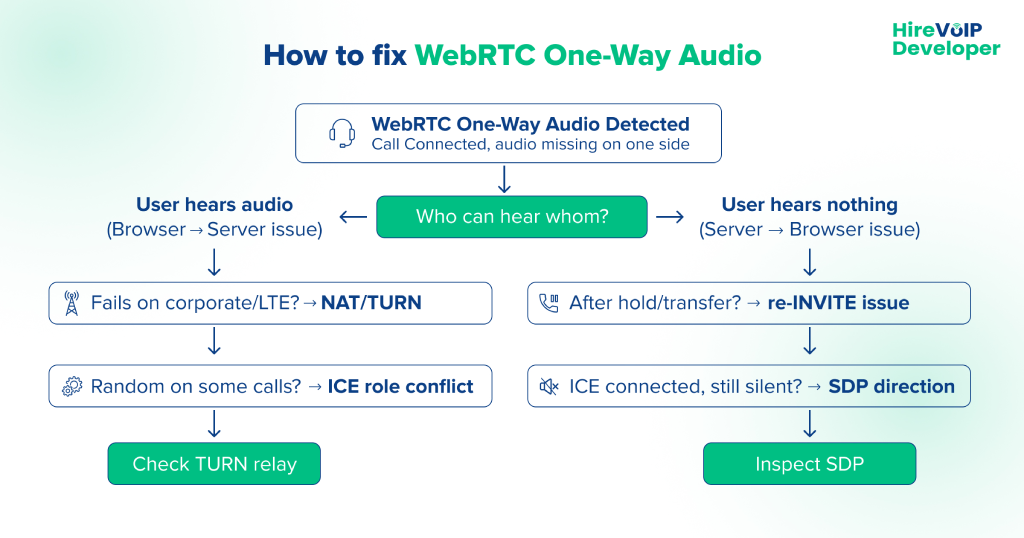
Here’s a practical way to approach WebRTC debugging in production without getting lost in complexity.
Step 1: Start with the One Tool You Already Have – webrtc-internals
Before reaching for heavy tools, open webrtc-internals. This alone can answer half your questions.
What you’re looking for:
- Did ICE reach “connected”?
- Did DTLS complete successfully?
- Are bytesSent and bytesReceived increasing?
If:
- bytesSent is growing but bytesReceived is zero → audio is leaving but not coming back
- bytesReceived is growing but user hears nothing → packets exist, but something else is breaking playback
This is your fastest way to understand why WebRTC audio is not working without touching the backend.
Step 2: Validate What’s Actually Happening on the Network
Now move one layer deeper. Use Wireshark to answer a very simple question:
Are audio packets even reaching where they’re supposed to?
- If no RTP packets are visible → it’s a network or routing issue
- If packets exist but audio is still one-way → the issue is not the network, it’s signaling or encryption
Wireshark’s RTP player can even let you “hear” the packets. If there’s silence there, the problem started earlier in the chain.
This step separates network problems from application problems quickly.
Step 3: Inspect the Signaling Layer
A lot of one-way audio WebRTC issues aren’t about packets at all. They come from how the call was negotiated.
This is where tools like:
- Homer/HEP help you analyze SIP and SDP across many calls
- sngrep helps you quickly view call flows in real time
What you’re checking:
- Did SDP change unexpectedly between request and response?
- Are IP addresses or directions different than expected?
You don’t need to decode everything. Just look for mismatches. They usually stand out.
Step 4: Move from Debugging One Call to Monitoring All Calls
Fixing one incident is good. Preventing the next hundred is better.
This is where most platforms level up.
Instead of waiting for users to report WebRTC audio not working, you can detect it automatically.
Use getStats() in your application:
- If a call is connected but bytesReceived stays at zero for a few seconds, something is wrong
- You can trigger alerts before the user even reacts
This turns debugging into early detection.
Step 5: Use RTCP Data to Catch Issues Before They Become Failures
Not every issue starts as complete silence.
Sometimes it begins with:
- Packet loss
- Jitter
- Degrading quality
RTCP reports give you this signal early.
If you notice consistent packet loss above a certain threshold, there’s a high chance it will turn into a WebRTC one-way audio issue under load or poor network conditions.
Catching this early helps you act before calls break.
Step 6: Connect It to Your Monitoring Stack
All of this becomes powerful when it’s not isolated.
Feed these signals into your observability setup:
- Prometheus
- Grafana
- Any alerting system your team already uses
Now you’re not just debugging calls. You’re watching patterns:
- Which regions fail more
- Which networks cause issues
- When failures spike
That’s how WebRTC debugging production becomes predictable instead of reactive.
The goal isn’t just fixing issues, it’s catching them before users do. With tools and patterns in place, diagnosis becomes predictable.
The Bottom Line?
Most WebRTC one-way audio issues feel random because they’re approached as a checklist. The faster way is simpler: treat it as a direction problem first.
Start by identifying which side isn’t receiving audio. From there, patterns fall into place:
- Network-specific issues → TURN or NAT
- Breaks after hold or transfer → re-INVITE
- Intermittent failures → ICE role conflict
- ICE connected, but no audio → SDP direction issue
- Media never establishes → DTLS mismatch
Once you classify the problem, fixing WebRTC audio not working stops being trial and error.
And if these issues keep showing up across your VoIP enterprise deployments at scale, it’s often a signal to Hire VoIP Developer to fix the root, not just patch symptoms.
Don’t just guess the fix. Identify the pattern, and the fix follows!